As a secondary teacher, you might align some of your assignments to reporting standards to track student progress in meeting specific learning goals.
The reporting standards you align to an assignment when you create it become the score columns on your Scores page for that assignment.
To enter standards scores for an assignment:
- Log on to the Staff view.
- Click the
- Select a class, and click the Scores side-tab.
- There are three ways to enter standards scores for an assignment. Do one of the following:
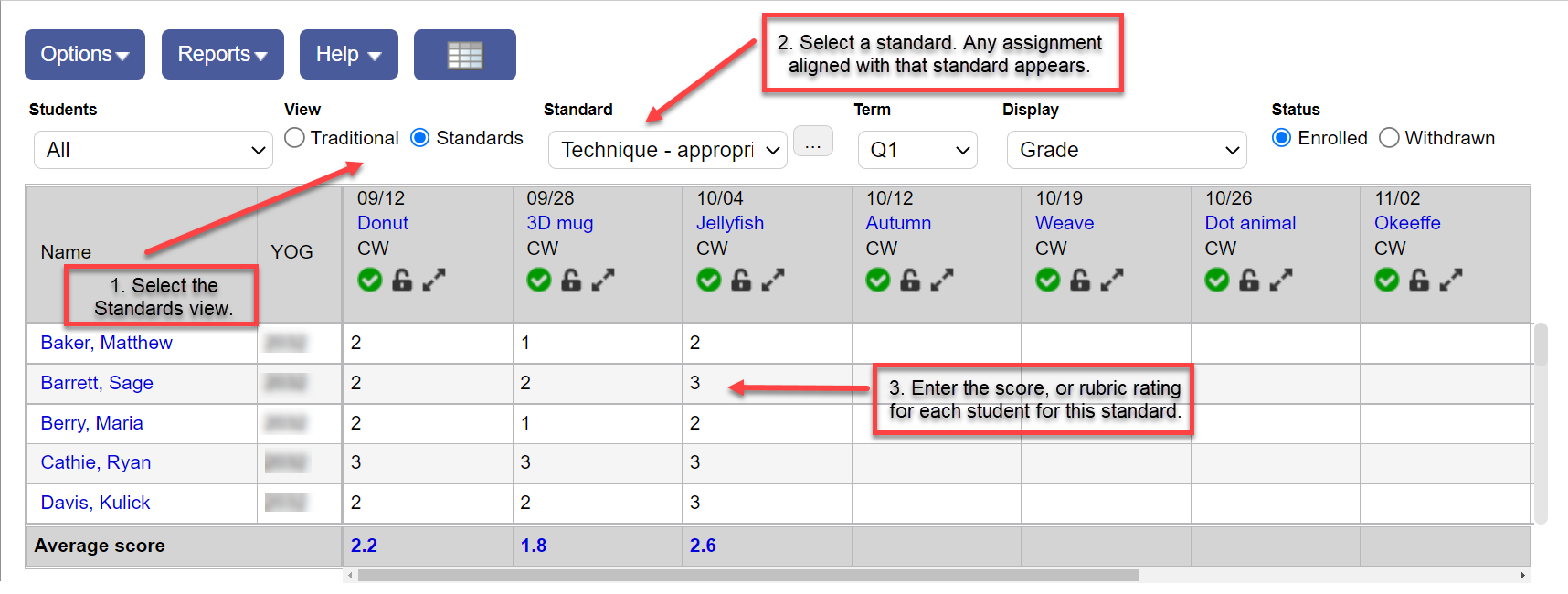
- To get a feel for how your entire class is progressing in meeting a standard, enter scores by standard, for the entire class.
Select the Standards view. Then, from the Standard drop-down, select the standard. Any assignment aligned with that standard appears.
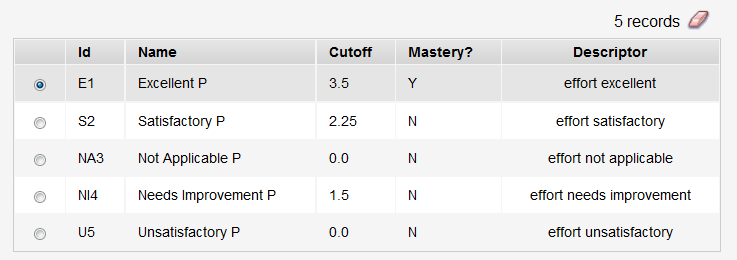
In a grading cell, press CTRL + L to select a score, or rubric rating, from the scale associated with this standard.
- To keep track of how one student is progressing, enter standards scores for that student, one standard at a time.
On the Scores page, click the student's name. The Single Student View appears.
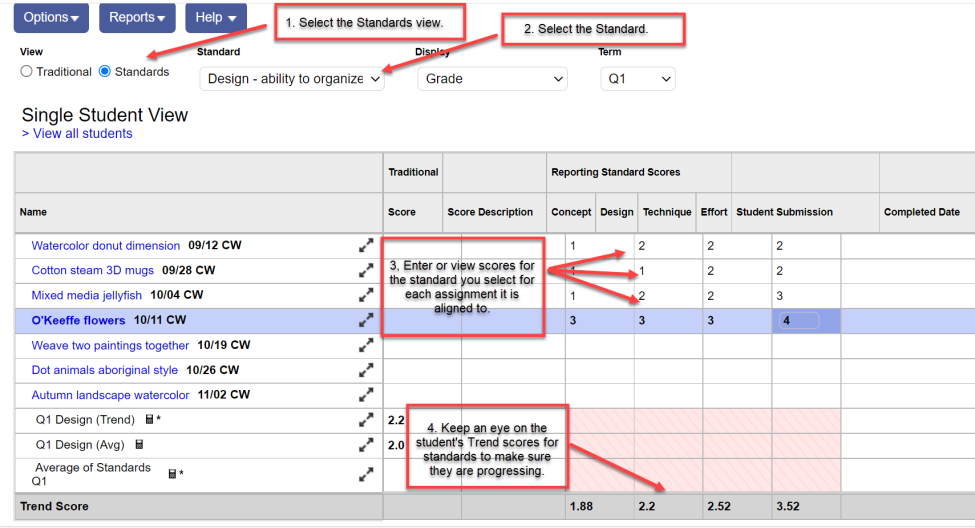
Select the Standards view, and then the specific Standard you want to see or enter scores for. A row appears for each assignment aligned to that standard.
You can enter scores in cells that are not pink.
- Or maybe you want to determine if the lesson before this assignment sufficiently prepared students in each area. Then you would enter scores for all students, for all standards aligned to a specific assignment.
On the Scores page, click the Single Assignment Entry icon
 in the column header of the assignment you want to enter scores for. The Single Assignment View appears.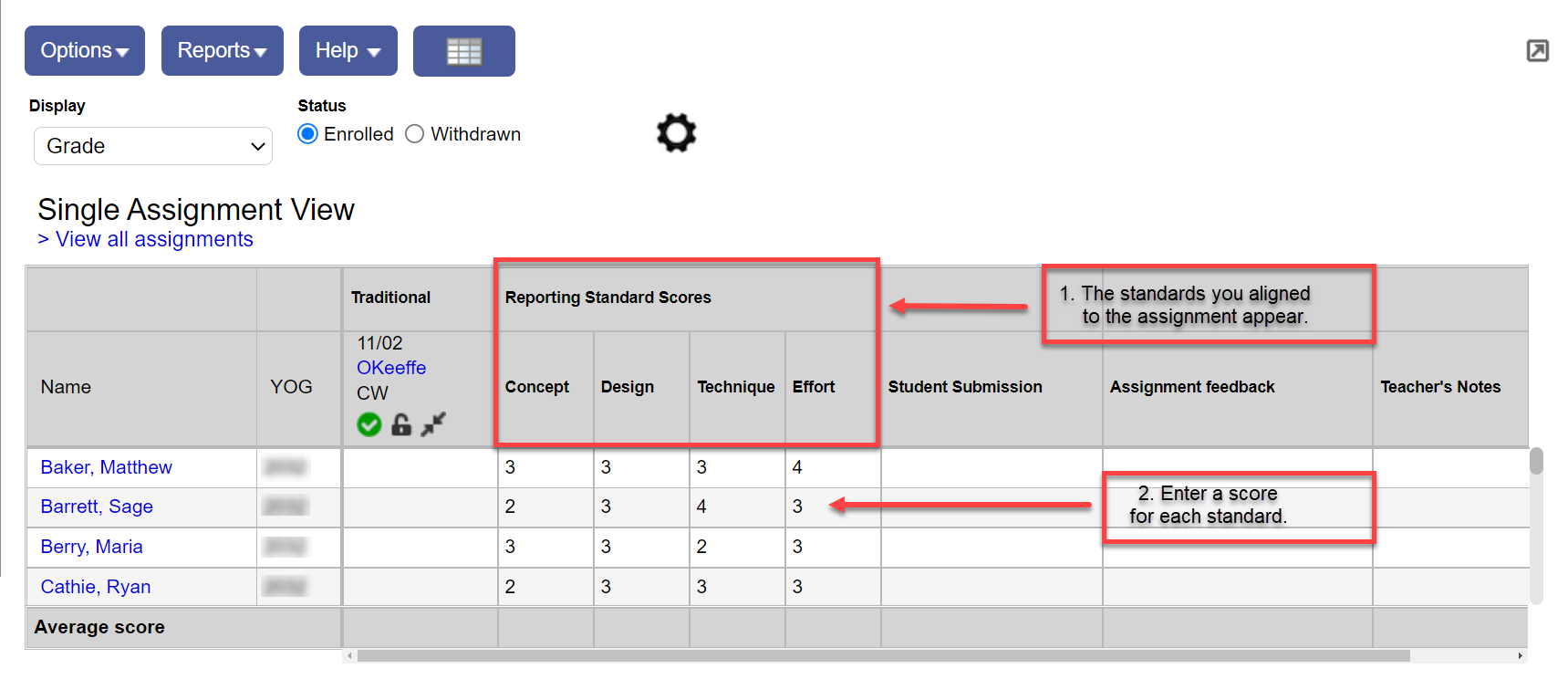
A column appears for each standard aligned to this assignment. Enter scores for each standard, for each student.
With each standard score you enter for an assignment, Aspen uses the Power Law calculation to calculate a Trend score. See View Trend scores to guide instruction.
Notes:
The reporting standard's name can appear truncated in the Reporting Standard Scores column. To view the entire standard name when entering scores, hover your cursor:

You can print a list of reporting standards for each class section as a reference when entering scores (Gradebook > select class section > Reporting Standards > click Quick Print icon
 ).
).
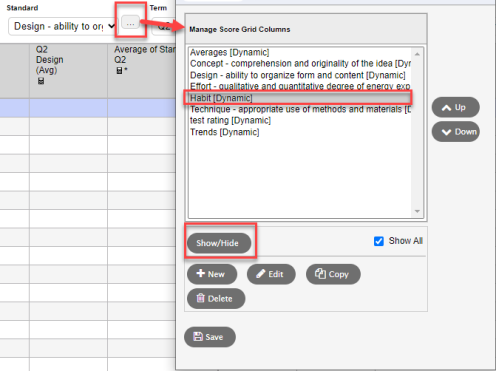
You might not use every reporting standard during a grade term. To temporarily hide reporting standards from the Standard drop-down, click the ellipsis icon. On the pop-up, select the standard you want to hide, and then click Show/Hide > Save. Repeat the steps when you want the standard to appear:
You can enter the same score for all (or most) students at once. Enter the score in a grading cell, then press CTRL+D or select Options > Fill-Down Values. Manually edit the few different values. See more tips for entering scores.
After you enter a standards score, you can hover your cursor over the